

Enable SSO
Single sign-on (SSO) lets your team authenticate to Texture using your organization's existing identity provider (IdP), rather than managing separate Texture passwords. Once configured, users sign in through your IdP and are routed directly into your Texture workspace.
Texture currently supports SSO via Okta using OpenID Connect (OIDC).
SAML-based SSO is planned and will be available in a future release. If your organization requires SAML, reach out to your Texture contact.
Prerequisites#
Before configuring SSO in Texture, you'll need:
- Admin access to your Texture organization
- Admin access to your Okta account
- The ability to create an OIDC application in Okta
Configuration#
Step 1: Create an OIDC app in Okta#
In your Okta admin console, create a new OIDC web application. Okta will generate a Client ID and Client Secret — keep these handy, you'll enter them in Texture in the next step.
See Okta's guide for creating an OIDC app for step-by-step help.
Add the redirect URL to Okta
Texture will display a Sign-in redirect URL in the configuration panel. Copy this URL and add it to the allowed redirect URIs in your Okta application settings.
https://texture.us.auth0.com/login/callback
Step 2: Configure SSO in Texture#
In your Texture dashboard, go to Settings → SSO. You'll find this section next to the Organization settings.
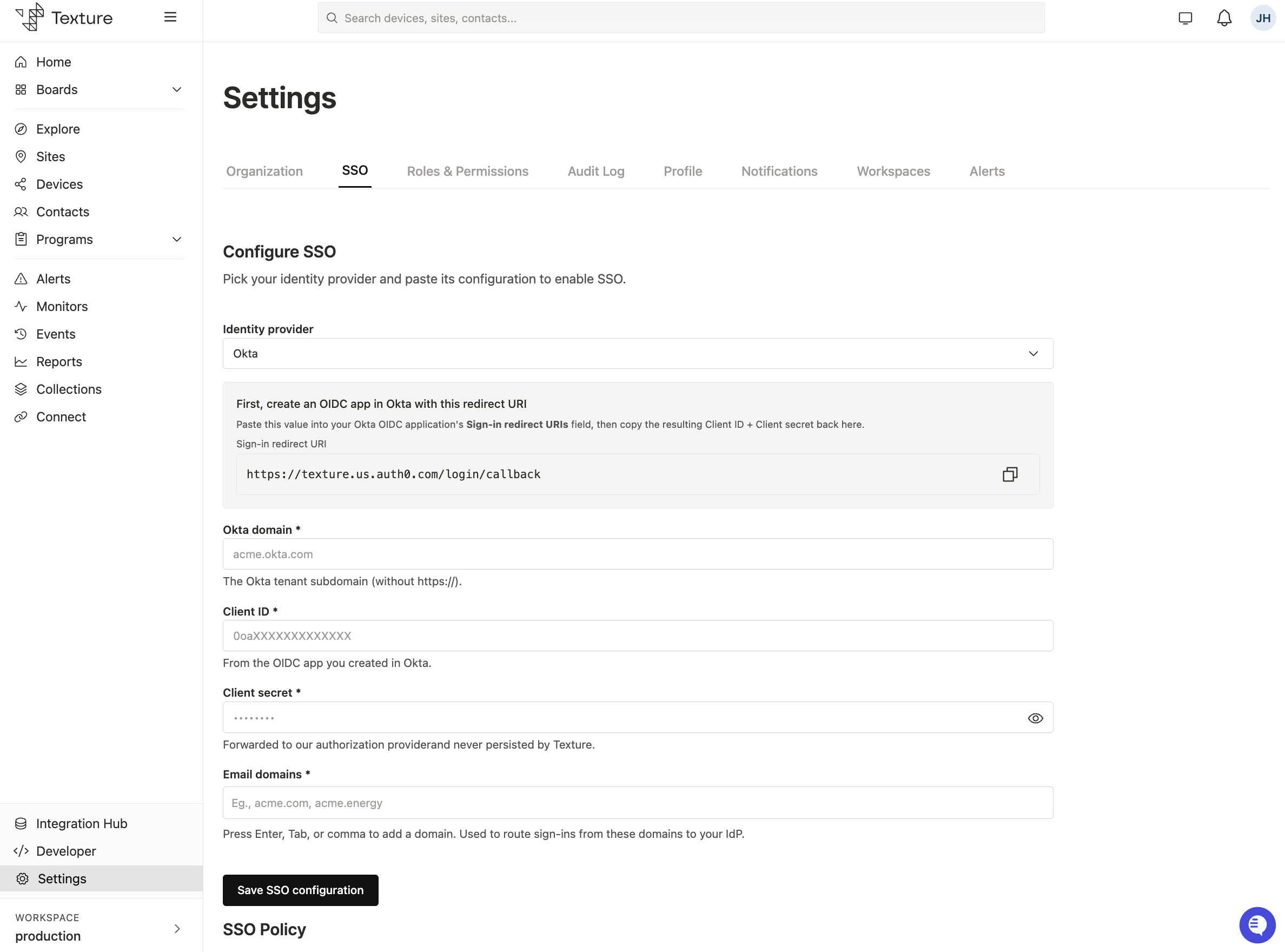
Fill in the following fields using the values from your Okta application:
| Field | Description |
|---|---|
| Provider | Select Okta from the dropdown. |
| Domain | Your Okta domain (e.g., yourcompany.okta.com). |
| Client ID | The Client ID from your Okta OIDC app. |
| Client Secret | The Client Secret from your Okta OIDC app. |
| Email Domain(s) | Used to route sign-ins from these domains to your IdP (e.g., acme.com, acme.energy). |
Step 3: Save and enable#
Once you've entered all fields and updated your Okta app, save the configuration in Texture. SSO is now set up for your organization.
Step 4: Configure SSO policy controls#
After saving your SSO configuration, three behavior options control how users are authenticated and provisioned.
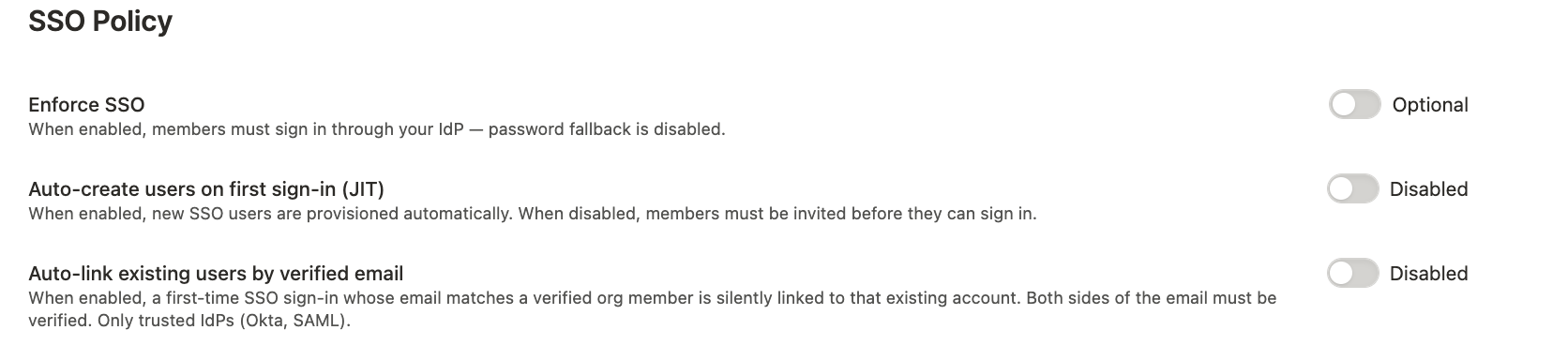
| Setting | What it does | Recommendation |
|---|---|---|
| Enforce SSO | Requires all users to sign in through your IdP. Removes the "Login with password instead" fallback from the sign-in page. | Enable after you've confirmed SSO is working correctly. Leave off during initial rollout to allow a password fallback. |
| Auto-create users on first sign-in | Automatically creates a Texture account for any user who authenticates through your IdP but doesn't yet have one. New team members can sign in without being manually invited first. | Enable if you want Okta to be the source of truth for who has access. Leave off if you prefer to control access by inviting users individually. |
| Auto-link existing users by verified email | Automatically links existing Texture accounts to the corresponding IdP account by matching verified email addresses. This allows current team members to keep their accounts after SSO is enabled. | Enable before rolling out SSO if your team already has Texture accounts. |
How sign-in works#
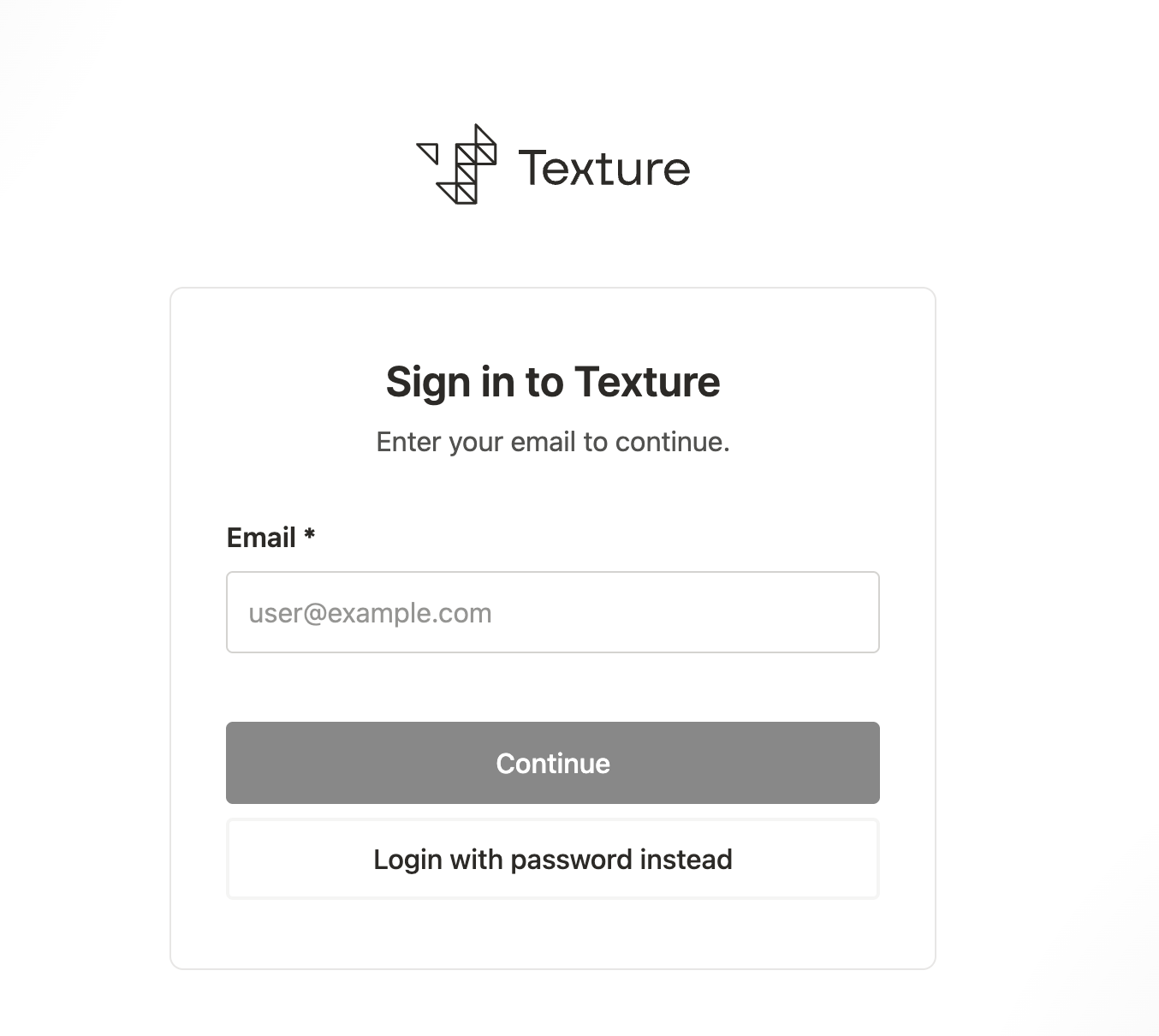
When a user navigates to the Texture sign-in page, they are prompted to enter their email address first. Texture uses the email domain to look up whether the associated organization has SSO enabled. Based on that lookup, one of two things happens:
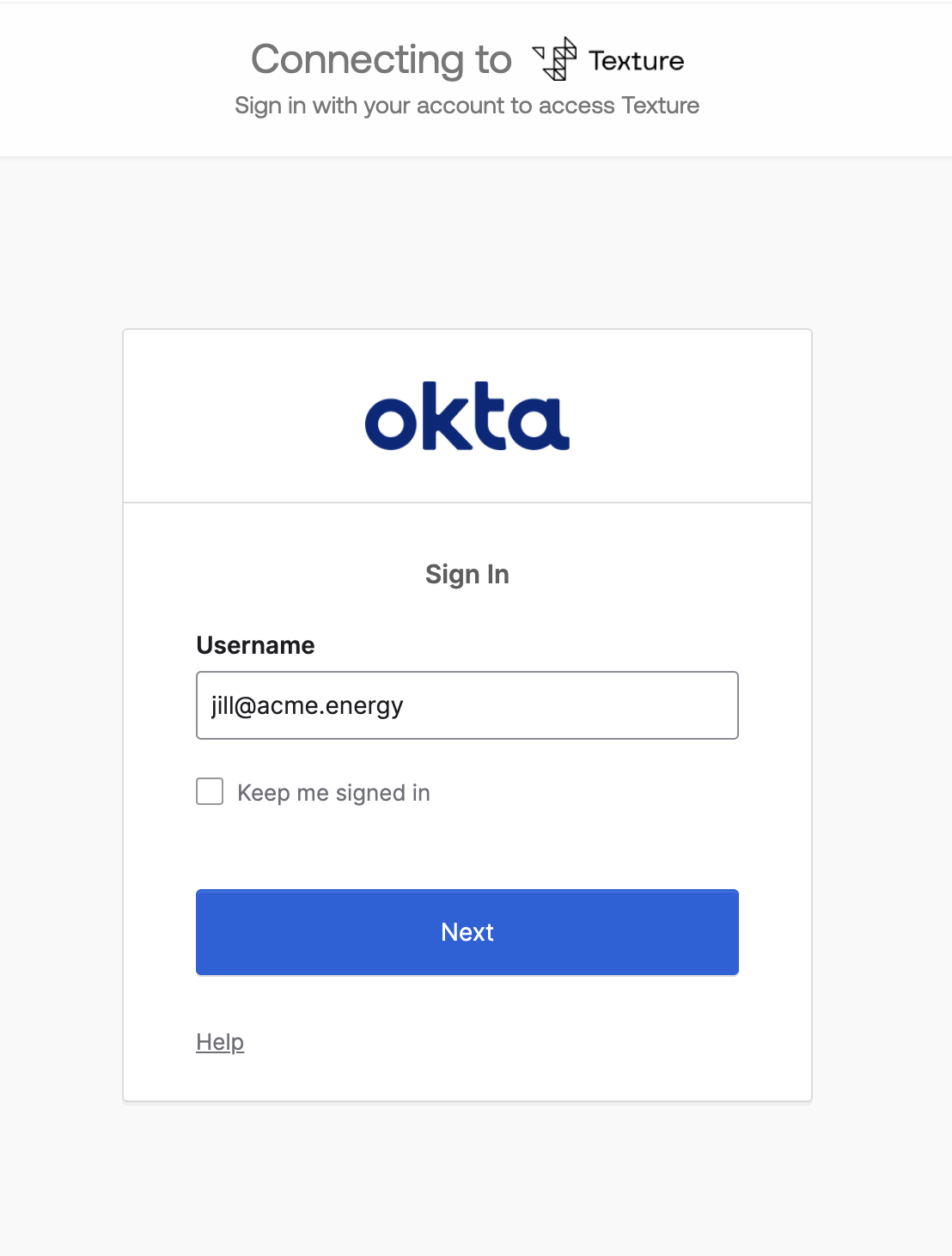
- If SSO is enabled, the user is redirected to your IdP (Okta) to complete authentication.
- If SSO is not enabled, the user proceeds through the standard Texture login flow.
If your organization has SSO enabled but not enforced, users will also see a "Login with password instead" option as a fallback. Enabling Enforce SSO removes this fallback.
Troubleshooting#
Users can't sign in after SSO is configured
Confirm the Sign-in redirect URL from Texture is correctly entered in your Okta application's allowed redirect URIs. A mismatch here will cause authentication to fail.
Existing users aren't being linked to their IdP accounts
Make sure Auto-link existing users by verified email is enabled. Users must also have a verified email address in Texture that matches the email address in Okta.
I need to disable SSO
Remove or clear the SSO configuration in Settings → SSO. Users will return to standard email/password authentication.