

Alert settings
Reduce alert noise for a workspace without losing data
Workspace alert configuration lets you reduce noise without losing data. Each workspace has its own settings for visibility, severity filters, and per-integration (OEM) overrides. Configuration affects what you see and what gets notified — never what Texture stores.
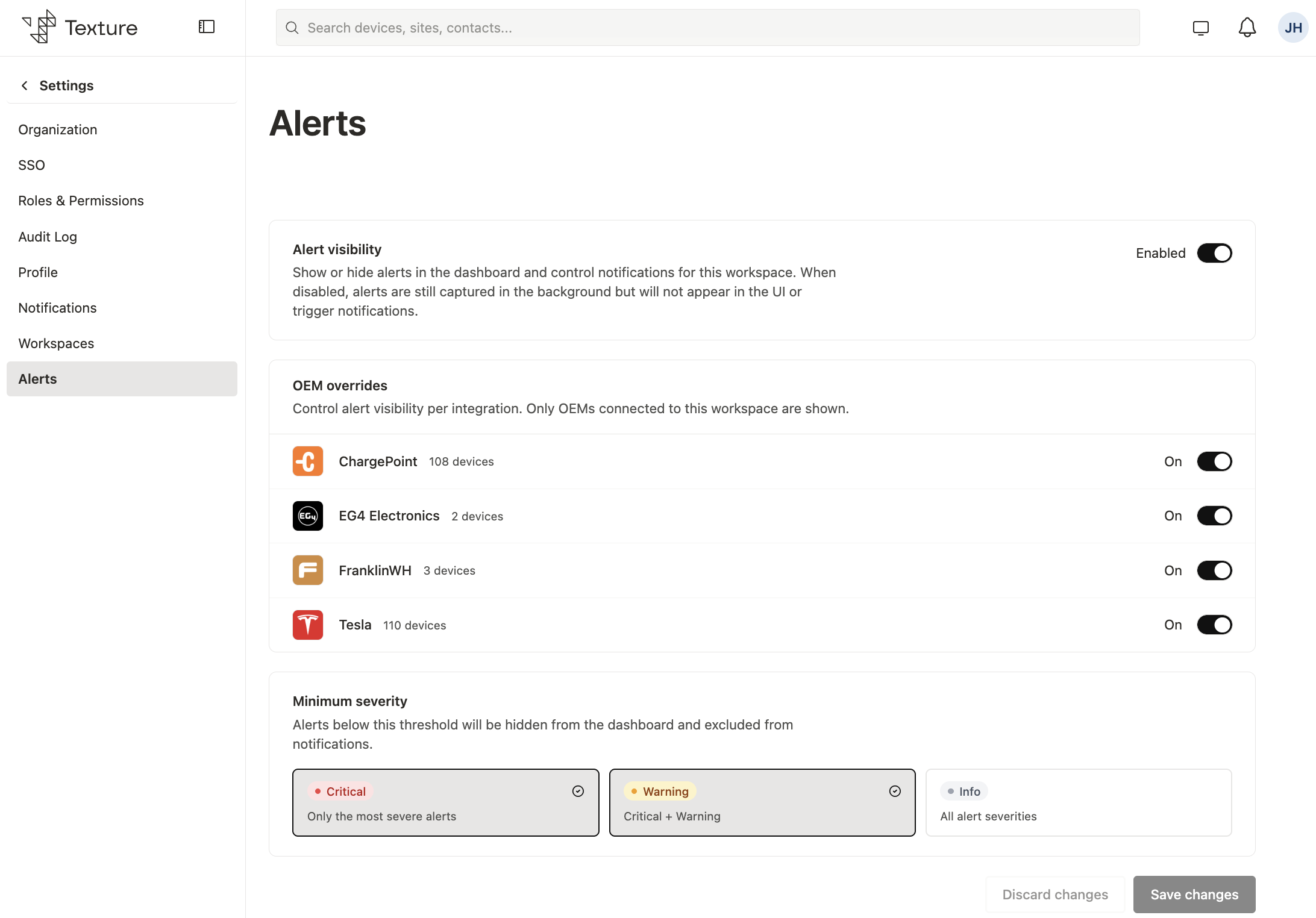
Where to configure#
- Open the Texture Dashboard.
- Go to Settings → Alerts (
/settings/alerts). - Adjust the controls below, then click Save to apply changes to the workspace.
Only admins can edit alert settings. Other members see the configuration in read-only mode.
Important — configuration is opt-in per workspace. Until you save at least once, the platform does not apply any visibility filters — all alerts remain visible and all fan out to Destinations — even though the form shows recommended defaults (
CRITICALandWARNINGon,INFOoff). Those defaults are enforced only after the first Save. This keeps existing workspaces backward-compatible.
Capture vs. visibility#
| Layer | Affected by config? |
|---|---|
| Ingestion and database storage | No — every alert is captured |
| Dashboard lists (alerts query, Site / Device alerts) | Yes — after first save |
Destination fanout (ALERT_CREATED, etc.) | Yes — after first save |
Hidden alerts remain available for audit, compliance, and internal operations. If the platform cannot read your saved configuration (for example, a transient database error), it fails open: alerts stay visible and notifications continue until the config can be read again.
Controls#
Alert visibility (master switch). The workspace-level on/off switch. When disabled, no alerts are shown and no alert fanout occurs — but capture continues in the background. Severity and OEM sections dim when the switch is off, yet remain editable so you can prepare settings before re-enabling.
Severity filters. Each level (CRITICAL, WARNING, INFO) is an independent toggle; only alerts whose severity matches an enabled level are shown and notified. Disabling all three while visibility is enabled means nothing appears or notifies (alerts are still captured).
UI labels vs. behavior. The Dashboard may describe severity cards with phrases like "Critical + Warning." Backend filtering treats each level independently — you enable the specific severities you want, not a cumulative minimum threshold.
OEM overrides. Control visibility per connected integration (manufacturer). The section lists only OEMs with active connections. Turning an integration off hides its alerts from the Dashboard and excludes them from notification fanout. Overrides are keyed by manufacturer slug (for example, solaredge-web, enphase, sma) — the same identifier used at ingestion. Only off overrides are stored; you never need to turn integrations on explicitly.
Common scenarios#
- Reduce
INFOnoise — keep visibility enabled, enableCRITICALandWARNING, disableINFO, save.INFOalerts are still stored but hidden. - Pause all alert notifications — disable Alert visibility and save. Re-enable when ready; severity and OEM settings are preserved.
- Hide one noisy integration — keep visibility enabled, turn the OEM override off for that integration, save.
- Return to showing everything — save a permissive config (all severities on, no OEM overrides off, visibility enabled).
Settings apply to the current workspace only — switch workspaces to configure each separately. Workspace alert configuration is set in the Dashboard; there is no REST endpoint for it today.
Reducing alert volume#
| Goal | Suggested approach |
|---|---|
| Cut informational noise | Disable INFO in severity filters after first save |
| Silence one integration | OEM override off for that slug if it matches Alert.provider (see Provider key vs. connection slug); otherwise filter by severity |
| Pause all outbound noise | Disable Alert visibility (master switch); capture continues |
| Audit full history | Query or export outside filtered Dashboard views; all alerts remain stored |
For how alerts are captured and classified, see How alerts work.